Entry · Ref 3RRHOR7C
What to Look for in a Construction Project Portal
- Posted
- 2026-11-14
- Last amended
- 2026-11-14
- Account
- @thebuildrecord
A construction project portal can simplify how a team shares progress, tracks issues, and keeps everyone on the same page. For a site using drone captures, the portal becomes the central place where aerial maps, 3D models, site imagery, and 360 panoramas live. But not every portal setup works well from the start. A quick checklist before each progress update can save time, reduce confusion, and make sure the information the team sees is accurate and useful.
Check That Everyone Has the Right Access
The first thing to verify is that every person who needs the portal can actually get into it. A project team often includes the general contractor, subcontractors, the owner, the architect, and sometimes local inspectors. Each may need a different level of access. Some people only need to view the latest drone images, while others need to mark up site observations or download full-resolution files.
Before a progress meeting, send out a quick reminder with login instructions. Check that any newly added team members have received their invitation and can log in. If the portal uses shared access links, confirm those links still work and have not expired. A team member who cannot open the portal during a meeting wastes time and slows down decisions.
Verify the Capture Timeline Is Up to Date
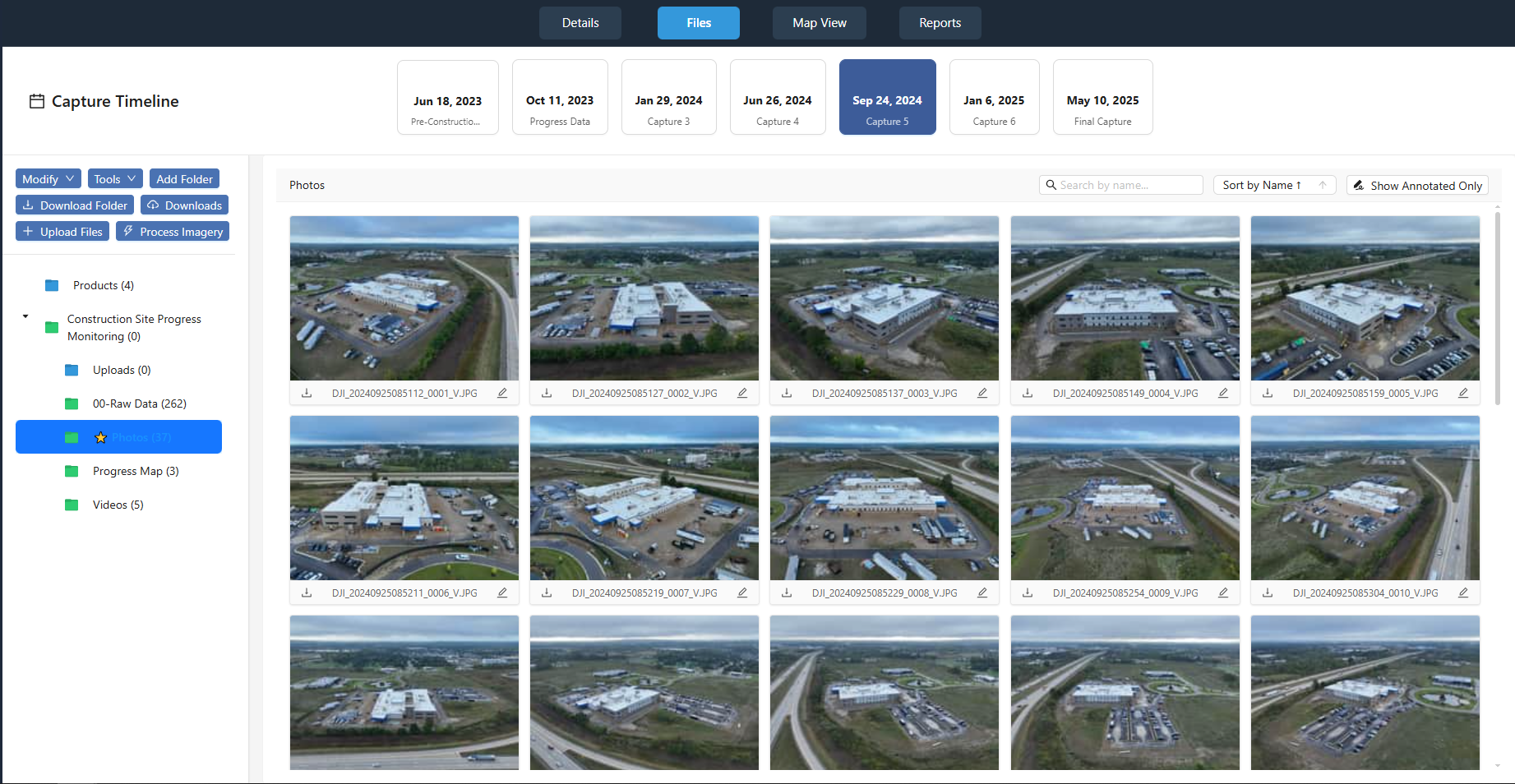
A portal is only as good as the data inside it. Drone captures happen on a schedule, and that schedule should be visible in the portal. Look for a capture timeline that shows when the last flight was, what areas were covered, and when the next flight is planned. If the timeline is missing or out of date, the team may be looking at old images and making decisions based on outdated information.
Check that each capture is labeled with the date and the phase of construction. A capture from last week that shows foundation work is useful. A capture from two months ago that still says "foundation" is misleading. The portal should make it easy to compare captures side by side so the team can see how the site has changed over time.
Review Marked-Up Images and Site Observations
One of the most valuable features of a construction project portal is the ability to add notes directly on an image. A marked-up image can show where a wall needs to be moved, where a utility line is unexpectedly exposed, or where a safety hazard was spotted. Before a progress meeting, go through the recent marked-up images to see if any comments need a response.
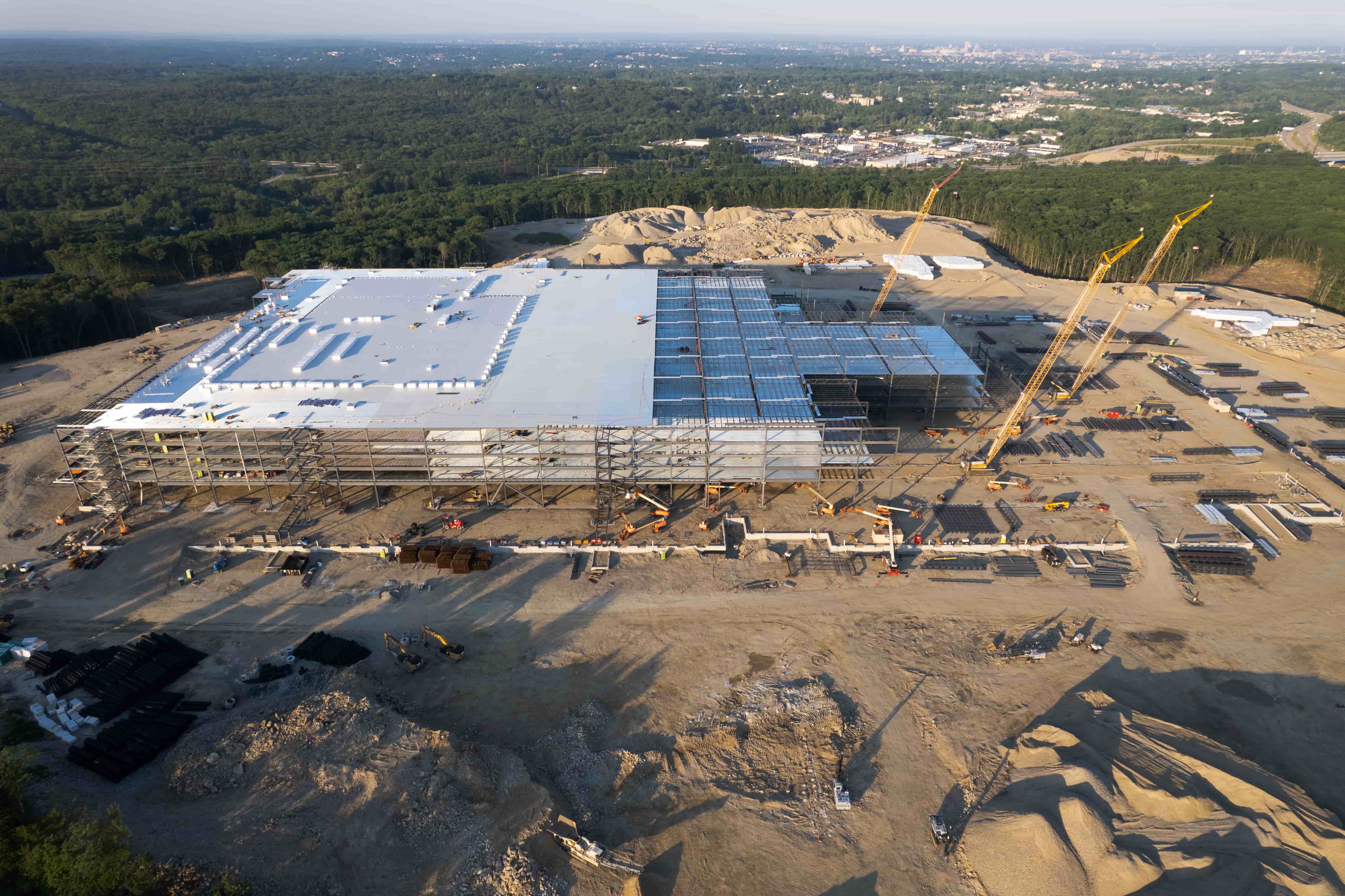
Site observations that are recorded in the portal should be clear and actionable. If someone wrote "crack in the slab," is there a photo of the crack? Is the location pinned on the map? Has the issue been resolved or is it still open? A good portal lets you filter observations by status so you can quickly see what is still outstanding. If the portal does not have a status filter, ask the team to adopt a consistent tag like "open" or "closed" in the comment field.
Confirm That the Owner Update Is Ready
The owner update is a regular communication that shows progress to the client or investor. It often includes a few key drone images, a summary of what was completed since the last update, and a look at what is coming next. Before you prepare the owner update, check the portal for the latest capture set. Make sure the images are clear, the weather was decent, and the angles show the most important parts of the site.
If the portal includes 3D models or 360 panoramas, decide whether to include those in the update. A 360 panorama can give an owner a real sense of walking the site, but only if the panorama is stitched correctly and has good resolution. Test the panorama in the portal before you share the link. If it loads slowly or looks blurry, it is better to leave it out than to send a poor experience.
Test Shared Access Links Before Sending
Many portals allow you to create a shared access link that anyone can open without logging in. This is useful for sending a quick view to an owner or a subcontractor who does not have a full account. But these links can expire, or they might point to an older version of the project. Before you send a shared link, open it yourself in a private browser tab. Check that it shows the right capture, that the images load, and that any annotations are visible.
If the shared link requires a password, make sure the recipient knows the password. Do not assume they remember it from last month. A simple message like "The password is the same as last time" often leads to a call asking what the password was. Send the password in the same message as the link, and remind them to bookmark the page for next time.
Plan for the Progress Meeting Itself
A construction project portal is a tool for the progress meeting, not a substitute for it. During the meeting, the team should have the portal open on a screen or on their own devices. The person leading the meeting can navigate through the captures, point to specific areas, and pull up marked-up images as needed. Make sure the portal's display works well on a projector or large monitor. Some portals have a presentation mode that hides the navigation panels and shows only the image. Test this mode before the meeting starts.
If the portal includes a timeline slider, use it to show how the site has changed week by week. This is especially helpful when the owner or a new team member has not seen the earlier stages. A quick slide from the first capture to the latest capture gives a clear visual of the progress made. It also helps catch any areas that have not changed as expected.
National Drone Services coordinates construction progress drone captures and organizes the resulting aerial maps, 3D models, site imagery, and 360 panoramas in a project portal. For teams that use this kind of setup, the checklist above helps keep the portal useful and the meetings productive. Without regular checks, the portal can become a dumping ground for files that nobody looks at. With a little attention before each update, it becomes a reliable source of truth for the whole project team.
Keep the Portal Clean and Organized
Over time, a project portal can accumulate old captures, duplicate files, and comments that are no longer relevant. Set a policy for cleaning up. For example, archive captures that are more than six months old unless they show a critical milestone. Delete duplicate images that were uploaded by mistake. Close out site observations once the issue is resolved. A clean portal is easier to navigate and less likely to cause confusion.
If the portal allows folders or tags, use them consistently. Name folders by date or by phase. Tag images with keywords like "foundation" or "framing" so the team can filter quickly. Agree on these naming conventions early in the project, and enforce them in the first few weeks. Once the habit is set, it takes very little effort to maintain.
Finally, ask the team for feedback on the portal. Is there a feature they wish it had? Is the image quality good enough for their work? Do they find the navigation intuitive or frustrating? Small adjustments based on real user feedback can make the portal much more effective. A portal that the team actually uses is worth far more than one that is technically perfect but sits untouched.